Introduction

A catchy video may lose its charm when it appears blurry, even when it could be capturing family time, a significant event, or old footage. To learn how to unblur video, one must first know the cause, since soft focus, camera shake, and low resolution require various remedies. This guide discusses five useful methods of deblurring a video, starting with easy editing options and noise mitigation, upscaling, stabilizing, and AI enhancement.
Why Some Blurry Videos Are Harder to Fix Than Others
The same is not true of all blurry videos. Others lose focus in the recording process, and some are unclear due to movement, low resolution, or low light. Different solutions are needed for every problem. Knowing what causes it enables you to make the correct decision on how to make a blurry video clear.
Soft Focus and Missing Fine Details
When the camera does not focus properly on the subject, it is referred to as soft focus. For example, you may take a family photo where people are not seen clearly, yet the background is also clear. Minor details, including facial features, the texture of the clothes, and text, can be hard to identify.
Motion Blur and Shaky Footage
Motion blur occurs when the camera or object is in constant motion when taken. As an example, a video of a running kid or moving car can display elongated and indistinct details.
Shaky footage presents a different problem because unwanted hand movement makes the entire scene unstable. Video stabilization can be used to minimize undesired camera motion, and appropriate deblurring software can be used to enhance motion-induced blur. Nevertheless, it is not always possible to solve both issues in one way.
Low Resolution, Compression, and Grain
Videos of low quality tend to be pixelated when they are displayed on bigger screens. This normally applies to old mobile recordings. Compression may also decrease clarity in the case of videos that are shared via messaging applications multiple times or posted on social media.
Another challenge is related to poor lighting. The grain might be visible in nighttime and indoor shots, making details more difficult to see. The footage can be cleaned by reducing noise and upscaling to enhance its resolution. Nevertheless, they both do not ensure flawless outcomes.
5 Ways to Unblur a Video and Improve Its Quality
The most appropriate solution will vary with what causes your footage to be unclear. To fix blur in video AI, you can try AI enhancement, sharpening, upscaling, noise reduction, or stabilization.
1. Use HitPaw VikPea to Enhance Blurry Video With AI
AI enhancement is a solution when normal editing fails to enhance a soft or noisy clip. HitPaw VikPea is a specialized video enhancer based on AI models to enhance the clarity of visual objects, decrease noise, and re-surface visible details.
It provides various models for different footage. The General Restoration model enhances details and sharpness, whereas the Denoise model removes grain. The Portrait model is oriented toward facial features, and the Generative AI model assists with the improvement of low-resolution videos. This combination makes it a handy blurry video enhancer for old videos, family videos, and downloaded videos.
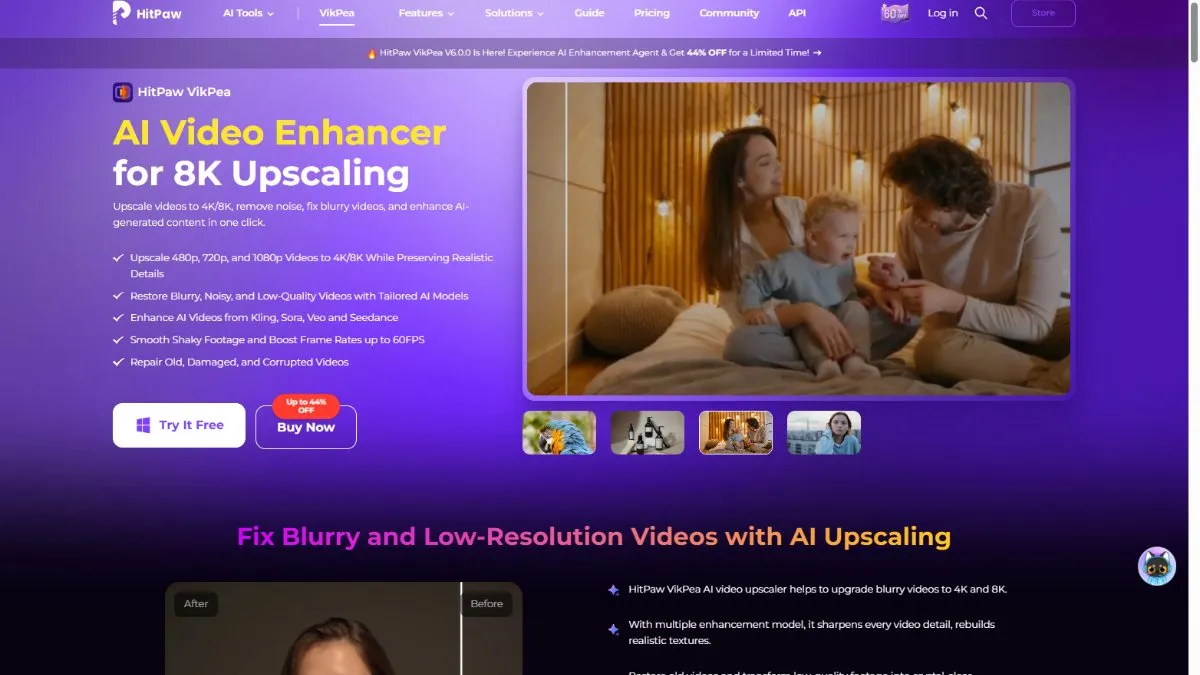
Outcomes are, however, based on the original recording. The AI is not able to ensure the retrieval of entirely missing details.
Key features:
- Video improvement and detail reconstruction based on AI.
- Noise filtering and sharpening.
- Facial enhancement for portrait videos.
- Low-resolution video enhancement.
- Preview options to compare the original and enhanced videos.
How to Unblur a Video With HitPaw VikPea
These four steps can help you enhance your footage.
Step 1. Install VikPea and download it.
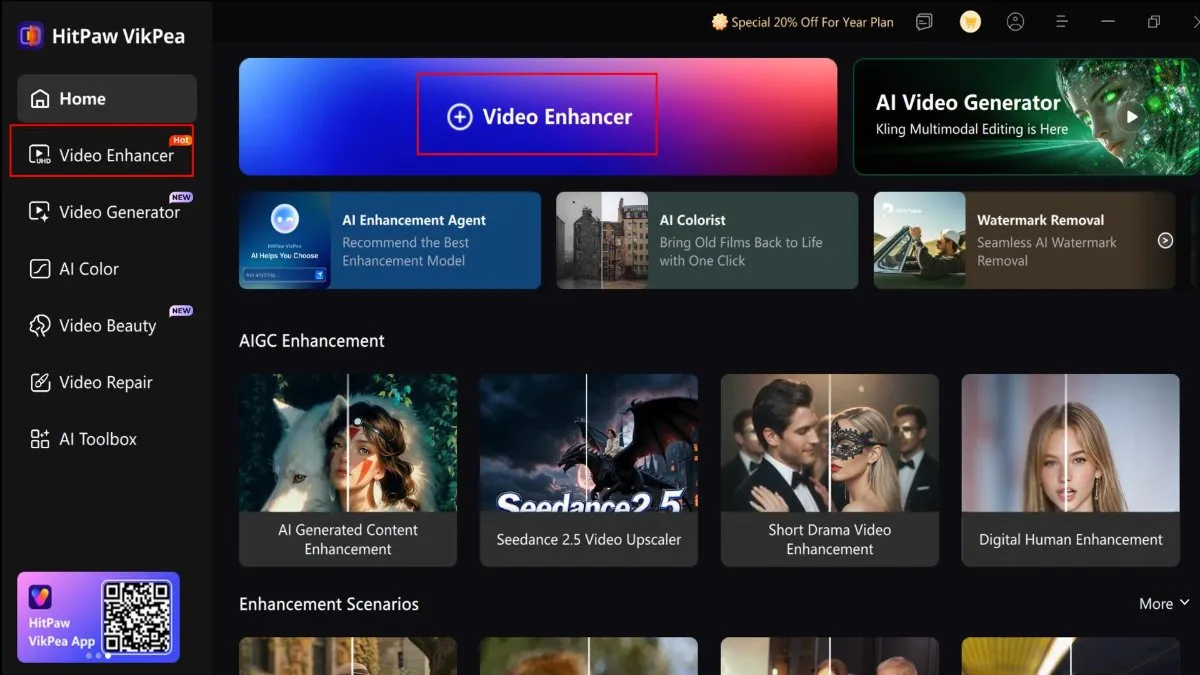
Go to the official HitPaw VikPea website. Get the software, install it, and open the application.
Step 2. Upload Your Blurry Video.
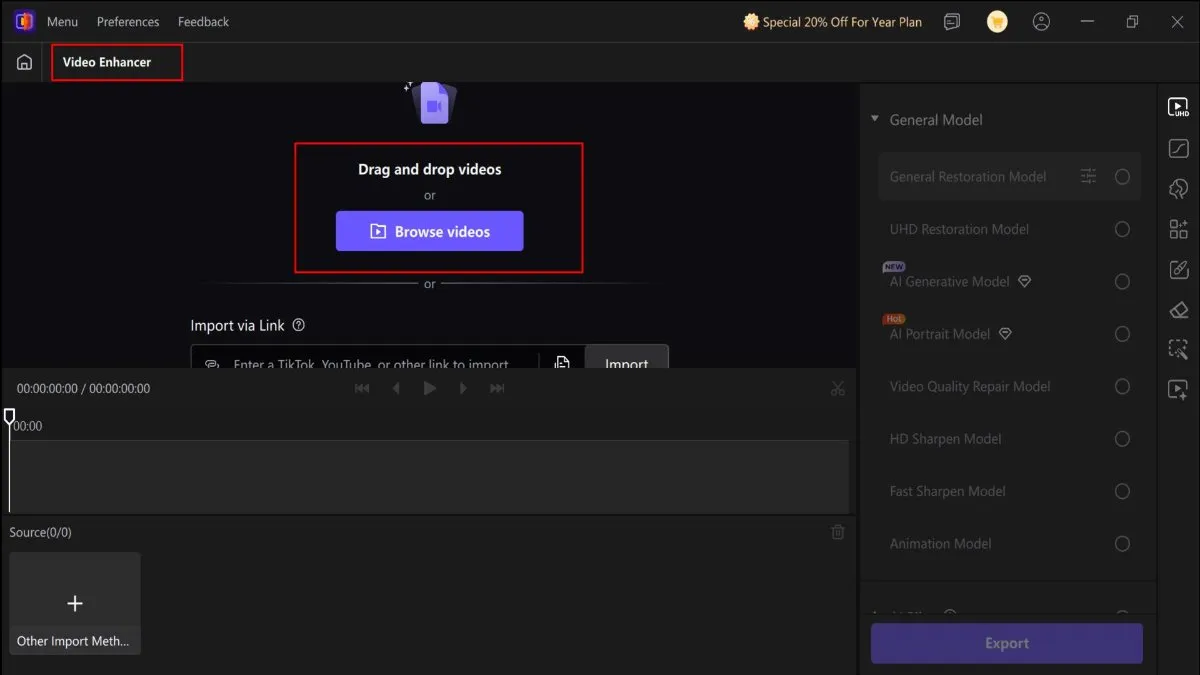
Open Video Enhancer and upload your original video. The file can also be dragged and dropped onto the workspace.
Step 3. Select a model of AI Enhancement.
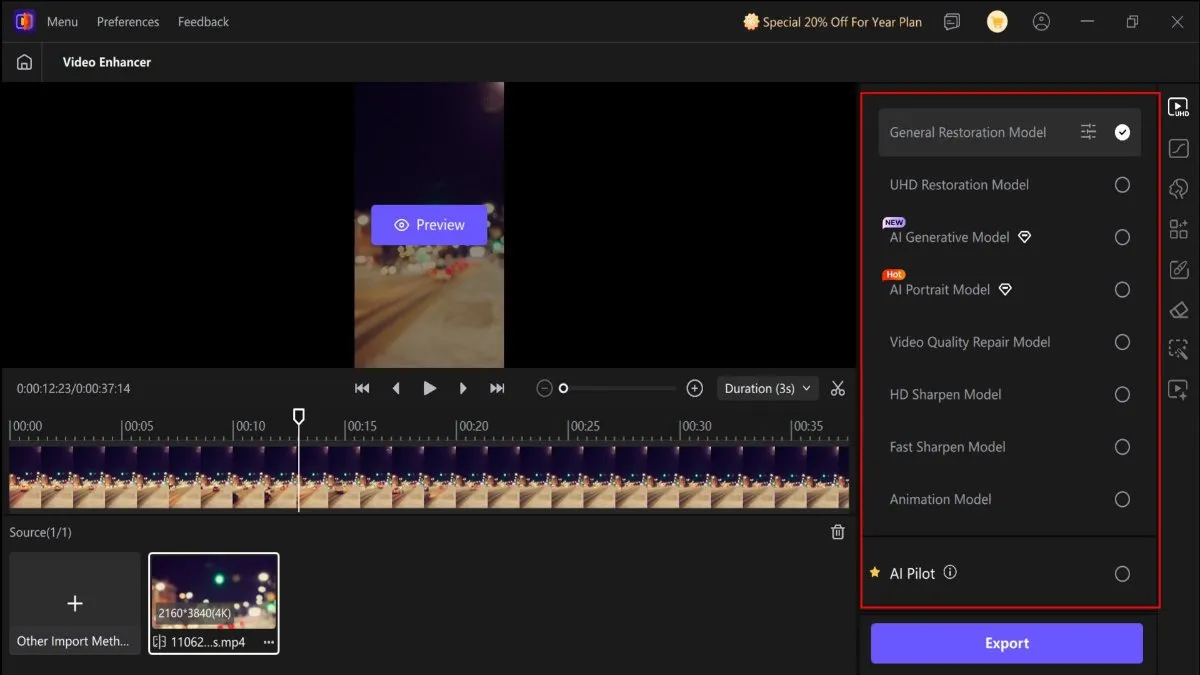
Choose an appropriate model according to your footage. General Restoration is ideal when you want to improve overall video clarity. The footage can also be analysed by AI Pilot, and an improvement model is suggested.
Step 4. Preview and Export the Video.
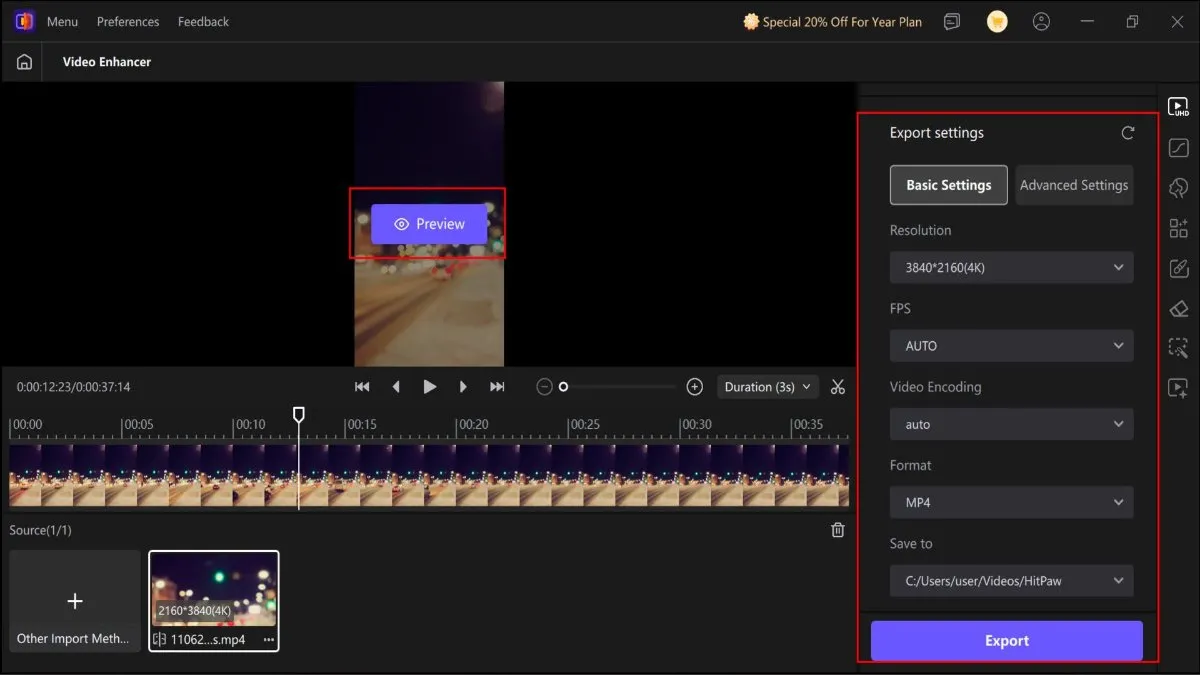
Click Preview to view the improved result. Compare faces, edges, and textures to the original. If you are satisfied, save your video by clicking Export.
2. Sharpen Slightly Blurry Footage in a Video Editor
When your video is a bit soft, a little sharpening will suffice. The majority of video editors, such as Adobe Premiere Pro, have sharpening features that enhance the edge contrast and make the available details sharper. It is effective with recordings of slightly out-of-focus faces, objects or text.
Try these steps:
- Add your video to a video editing program like Adobe Premiere Pro.
- Locate the Sharpen or Unsharp Mask effect and apply it to the clip.
- Progressively sharpen, checking faces, edges and textures.
- Export a short test clip and compare it to the original.
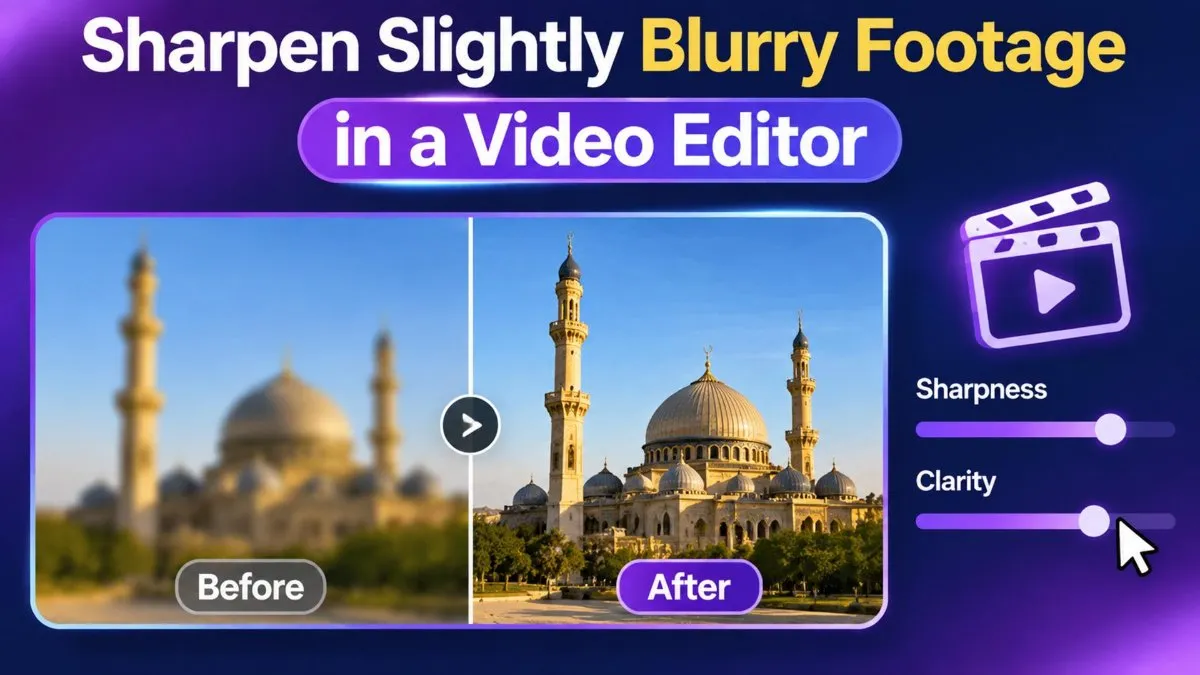
Be careful not to over-sharpen, though. It has the capability to add apparent detail and form bright edges around objects. In contrast to simple editing, the AI enhancement can provide a wider solution since it may include sharpening and other enhancements. In the case of severely blurred footage, an AI tool can be an option.
3. Upscale Low-Resolution Videos
Old mobile recordings are often unclear, and they cannot be viewed on a contemporary TV or a huge computer monitor. Upscaling enhances the resolution of the video, e.g., converting 480p to 1080p or 4K. AI-based upscaling takes it a step further and tries to guess other details to enhance the look of faces, textures, and edges.
If you are asking yourself how to sharpen a blurry video, then follow the following workflow:
- Check the original video’s resolution and quality.
- Select an upscaling app, e.g., the video upscaling option of Adobe Firefly.
- Choose an adequate output resolution, e.g., 1080p or 4K.
- View and export the preview at the size you want to view it.
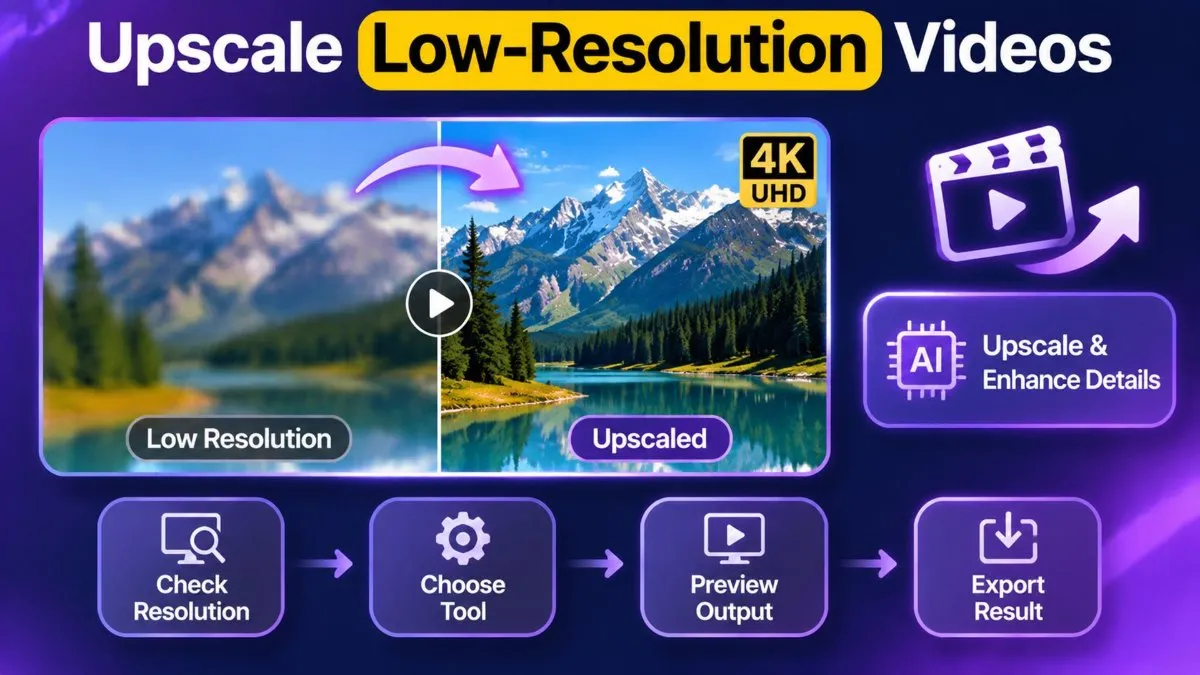
Keep in mind that a change of resolution does not help to reconstruct lost details. The details produced by AI are estimates, not exact recovery of the original information. In case you require more than simple resizing, you can use AI enhancement and upscaling services from VikPea. Look at the output and be sure to share.
4. Reduce Noise Before Applying Sharpening
Videos that are shot in the darkness or in low-light rooms may have noticeable grain. This noise can conceal the minute details and roughen faces. Sharpening itself could cause the problem to deteriorate. A better approach is to reduce noise first and then apply sharpening.
Follow these steps:
- Transfer your video to a video editing program.
- Filter with a noise reduction or denoise filter.
- Gradually increase the strength until the grain is not easily visible.
- Light sharpening and preview before exporting.
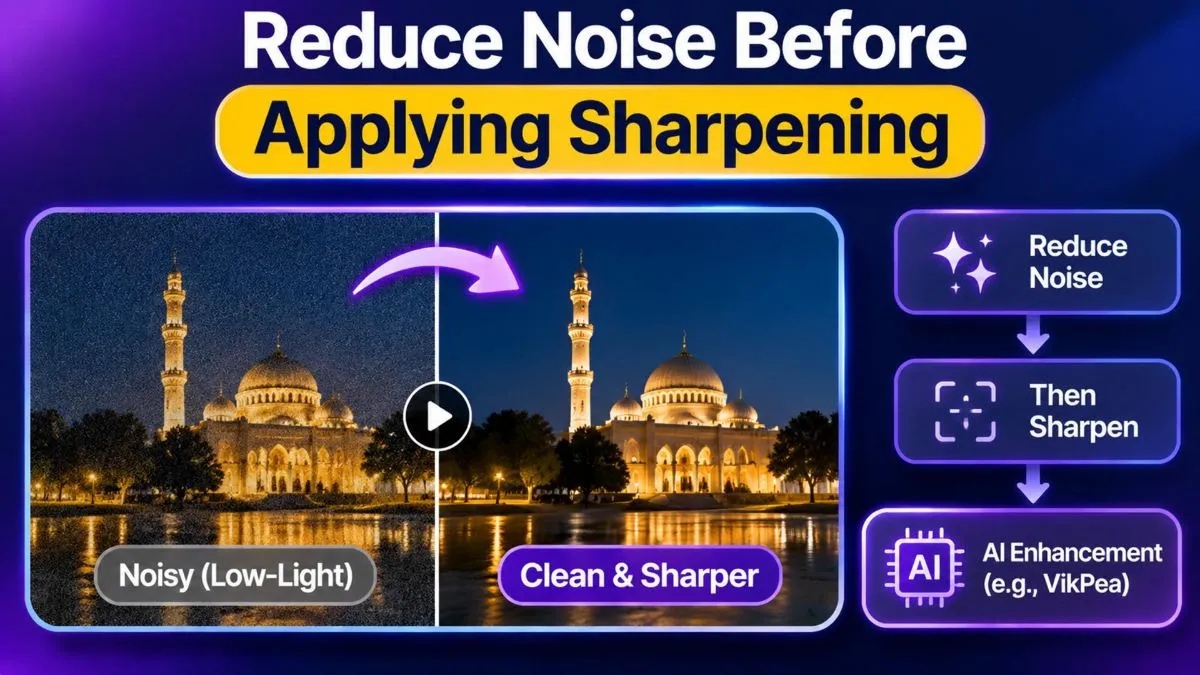
Too much noise reduction should be avoided. It can blur skin textures, flatten faces, and make objects appear unnatural. Otherwise (when you want a more integrated process), you can use the AI Denoise model of VikPea to find appropriate footage. Its performance is still subject to the quality of the recording and the noise level.
5. Stabilize Shaky Footage and Address Motion Blur
Camera shake and motion blur can appear similar; however, their causes are different. Camera shake takes place when you shake your hands while recording, and motion blur is caused when the camera or subject moves too quickly. The correction methods for each problem should be different.
Try this workflow:
- Export your video to a video editor like Adobe Premiere Pro.
- Use the Warp Stabilizer filter to lessen undesired camera motion.
- Watch the video and change stabilization options (if needed).
- To sharpen up blurred images, use an appropriate deblurring or AI sharpening tool.
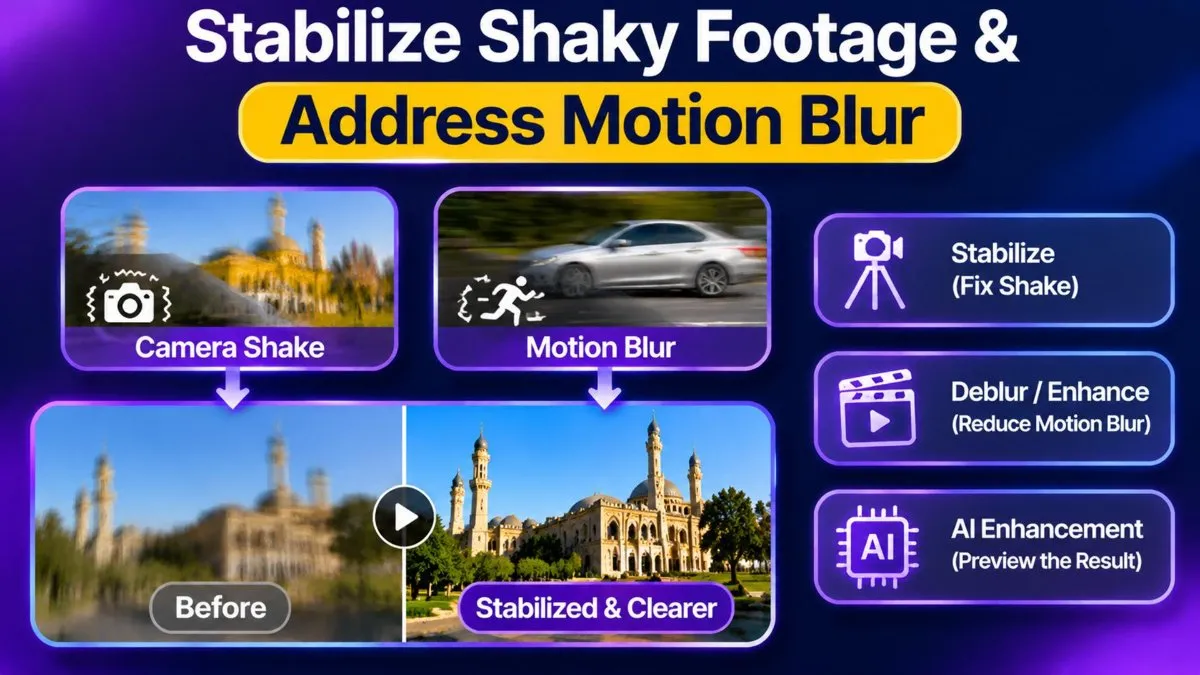
It is important to remember that stabilization will make the footage less jerky, but it will not be able to automatically recover the information that has been lost in a single picture. Severe motion blur and missed focus can remain. It can be improved with AI to get some of the recordings, but never export without previewing. Do not hope that all the fuzzy videos will turn out to be perfectly clear.
FAQs About Unblurring Videos
1. How to Unblur a Video Without Recording It Again?
Video editing software can be used to sharpen or smooth noise, or stabilize a shaky video. Even AI video filters like HitPaw VikPea can do wonders to your existing videos, without having to record them anew.
2. Can AI Fix Blur in a Video?
Yes, AI applications have the ability to enhance the quality of videos by removing noise, improving details, and faces. The outcome, however, is dependent on the original video and the kind of blur.
3. What Is the Best Blurry Video Enhancer?
One of the alternatives to enhance blurry, noisy and low-resolution videos is the HitPaw VikPea. Its artificial intelligence models provide various improvement features based on the video.
4. Can I Make a Low-Resolution Video Clearer?
Yes, video upscaling has the potential to raise resolution and enhance the appearance of footage on bigger screens. Upscaling using AI can also enhance the visible details; however, it is not guaranteed to fully recover.
5. Can Every Blurry Video Be Fully Restored?
No, in some videos, too much information has been lost due to extreme motion blur, missed focus, or compression. They can be enhanced with the help of tools, and still, it is not always possible to restore them perfectly.
Conclusion
The most effective method to unblur a video is based on the cause of the blurry video, namely soft focus, motion blur, noise, and low resolution. To enhance the quality of footage that requires a wider range of enhancement, HitPaw VikPea provides the possibility of AI enhancement to increase the clarity of the images, remove the noise, and recover the visible elements before sharing or continuing editing.Test the enhancement on a short clip and compare it with the original and select the settings that work best, bearing in mind that even the best tools cannot restore every lost detail perfectly.
- How to Unblur a Video: 5 Ways to Make Blurry Footage Clearer
- NYC Access-A-Ride Riders Demand Later Booking Deadline
- Donor IVF and Emotional Well-Being: How to Stay Hopeful on the Path to Parenthood
- GoodMoodDotCom.com Editorial Standards: How Guides Are Made
- GoodMoodDotCom.com Four-Step Method for Better Days